Start with the copy you need to send
Suppose an outside reviewer needs the dates and total in a client service summary, but not the client’s name or account reference. You can prepare that copy without first uploading the original to a redaction website. Make a separate working file, decide what the reviewer needs, apply real redactions with a suitable local PDF tool, and inspect the saved result before sending it.
This guide is for a text-based, unencrypted PDF that you can examine. It explains the document task using an available, approved tool; Offline Document Redactor is still on a waitlist. The separate guide on checking a redacted PDF goes deeper into the final inspection.
Confirm what the PDF contains
Open the source in a trusted local PDF viewer. Try selecting and searching a few words on every page. If a page is only a scanned image, is protected, or contains a region your tool cannot examine, do not assume the text-redaction path covers it. A PDF can mix readable text with image regions. Use a separately verified image/OCR workflow for those regions, or stop until a reviewer can inspect them.
Keep the original in its approved location and give the working copy a neutral filename. A filename can disclose a client name even when the page is redacted. If only a short passage is needed, consider preparing that passage rather than sending the entire file.
Decide what to remove and what to keep
Write down the recipient’s task first. In the fictional summary below, the reviewer needs the service period and $3,280 total. The client’s name, email and internal account reference do not help answer that question. Look for each value in the body, tables, headers, footers and repeated mentions. Also review less obvious context that could identify the person when combined with the remaining facts.
Choose removal or a neutral token based on the job. A token such as [CLIENT_1] can preserve the fact that two references concern the same client. It does not guarantee anonymity; other details may still identify someone. Do not invent a plausible real account number as a replacement.
Apply redaction offline, then save a new file
- Mark every occurrence. Search the text for each name, email, reference and likely variant, then inspect the pages visually for occurrences search may miss.
- Use a removal function. Select the areas in a local PDF tool that can apply redactions to the content. A black drawing or highlight placed over text is not the same operation: the US District Court for New Jersey warns that covered text and hidden data may remain readable.
- Apply the marked changes. Confirm the tool’s redaction step rather than leaving marks in a preview. For a concrete desktop example, Adobe’s Acrobat Pro instructions distinguish selecting text/images, applying redactions, and choosing whether to sanitize hidden information. Controls differ in other tools; verify what yours actually removes.
- Handle hidden material separately. Use a supported sanitization or inspection method for metadata, comments, attachments and other nonvisible material. Do not assume that removing visible text clears these surfaces.
- Save a separate output. Use a neutral filename such as
review-copy-001.pdf, keep the original intact, and open the saved file itself for the final check.
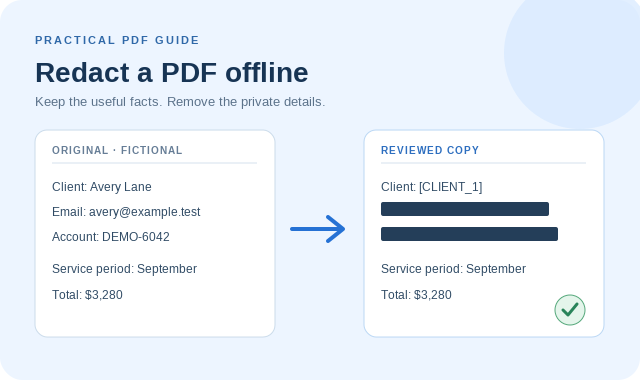
A fictional one-page PDF, before and after
This document-shaped example is entirely invented. It shows the editing decisions; it is not an actual PDF export or a tested output of our unreleased app. On a narrow screen, the original appears above the candidate copy.
File DEMO-4821 · 14 October 2026
Service summary
- Client
- Avery Lane
- avery@example.test
- Account reference
- DEMO-ACCOUNT-6042
- Period
- 1–30 September 2026
Services for review
| Description | Amount |
|---|---|
| Document review | $2,400 |
| Follow-up analysis | $880 |
| Total | $3,280 |
Note
Ask Avery Lane whether the review period covers the final week of September.
Review copy · 14 October 2026
Service summary
- Client
- [CLIENT_1]
- Account reference
- Period
- 1–30 September 2026
Services for review
| Description | Amount |
|---|---|
| Document review | $2,400 |
| Follow-up analysis | $880 |
| Total | $3,280 |
Note
Ask [CLIENT_1] whether the review period covers the final week of September.
The reviewer still has the period, service lines and total. The client name becomes one consistent token; the email, account reference and internal file code are omitted. A real reviewer must also inspect any metadata and context outside this visible page.
Check the exported copy, not only the preview
Open the exact saved PDF that you plan to send. Read every page; check the table, header, footer and filename. Search for each removed value and try selecting or copying text near a redaction. Inspect properties, comments, attachments and other hidden content with a method appropriate to the file. If anything remains or a page cannot be checked, stop, correct the output and inspect the new saved copy again.
Use the full saved-PDF verification checklist for the visible, recoverable-text and hidden-information checks. A clean search alone cannot prove every disclosure path is gone.
Conclusion: prepare the smallest useful PDF
For a readable PDF, decide what the recipient needs, apply actual removals to a separate local copy, and inspect the exported file before choosing where it may go. If the file contains scans, protected areas or content you cannot review, resolve those limits before sharing.
If you are evaluating a local desktop workflow, see Offline Document Redactor’s product overview and file-format limits. The app is pre-release; join the waitlist for launch updates. For work that must be shared now, use an available, approved tool and check its output.