Decide what the recipient needs
Start with the recipient and the task. A reviewer of a client expense workpaper may need categories and totals, but not the client's name, tax identifier or bank account. Keep the original in its approved location, make a separate working copy and mark every occurrence of information the recipient should not see. Give the outgoing copy a distinct filename.
A PDF can look redacted while still containing recoverable information. A dark rectangle may only cover text, and comments, attachments or metadata can survive in the file. US federal court guidance explains why covering text with a box or changing its color is inadequate. Its e-filing context is specific; the technical warning also matters when sharing a PDF elsewhere.
Review every visible page
Open the saved output file, not only the editing preview. Read each page as the recipient will. Check tables, headers, footers, signatures, scanned regions and blank-looking spaces. Confirm the needed figures and context are still legible.
This visual pass catches omissions but cannot prove covered content is absent. The District of Minnesota's redaction guide warns that white text and black boxes can leave text available to copy.
Look for information behind the page
Search the final PDF for each removed value and common variants. For a fictional client named Maya Chen, search for the full name, surname and any account or case number that might appear elsewhere. Try selecting and copying text near a redaction into a plain-text editor. If a removed value is recoverable, stop before sharing and make a new output using a genuine removal method.
Then inspect document properties, comments, attachments, form data and hidden layers using controls suited to the PDF. Adobe distinguishes applying redactions from sanitizing hidden information. A clean text search alone is insufficient: an image, attachment or metadata may not appear in that search. The UK Information Commissioner's Office checklist covers hidden personal information in documents.
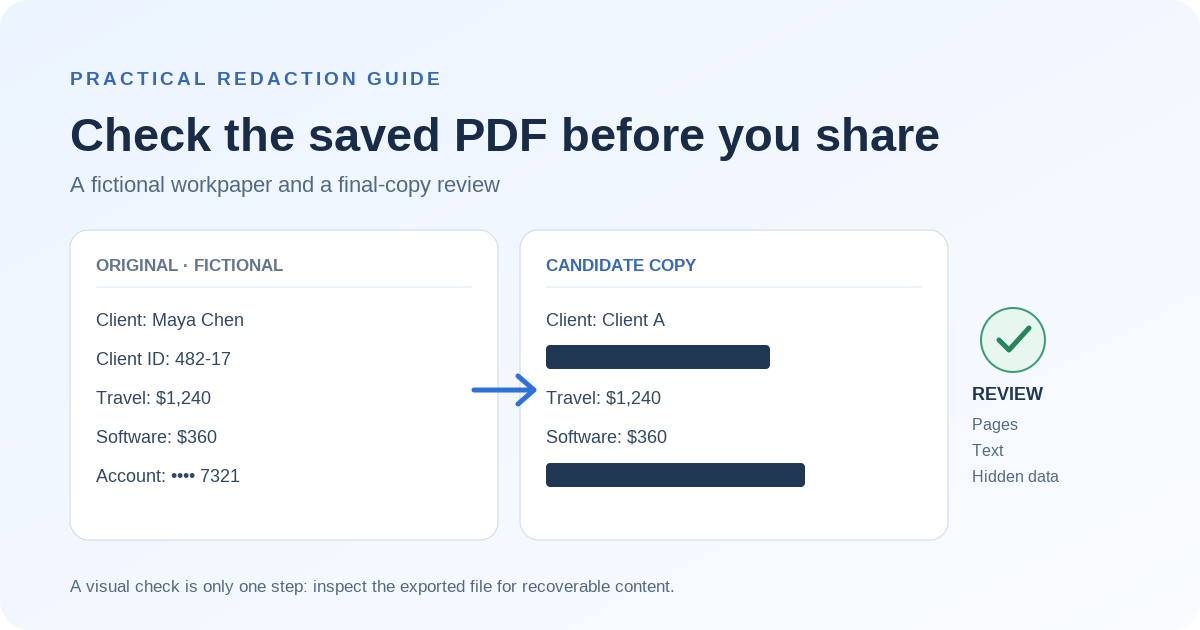
A fictional before-and-after check
The example below is invented. Compare both the facts the reader still needs and the identifiers they must not receive.
| Area | Original | Candidate to share | Review question |
|---|---|---|---|
| Client header | Maya Chen; client ID 482-17 | “Client A”; ID removed | Does the name or ID remain in a footer, bookmark or metadata? |
| Expense table | Travel $1,240; software $360 | Same categories and amounts | Are the task facts intact and readable? |
| Payment line | Account ending 7321 | Payment line removed | Can the account value still be searched, selected or recovered from another layer? |
For a real document, compare the saved copy with the original and with your organization's decision about what this recipient may receive.
If a check fails
Do not send the file. Correct the source or use a redaction function that removes the marked content, apply the redactions, handle hidden information, save a new output and repeat the checks. If the PDF is scanned, protected or partly unreadable, treat the unexamined area as unresolved and choose a suitable workflow before sharing.
At handoff, verify the exact filename, attachment and recipient. A correct preview will not help if the original is attached by mistake.
Conclusion: inspect the file you will actually send
Define what the recipient needs, remove the rest, examine the saved PDF's visible and hidden content, then confirm the exact file and destination. This sequence reduces common mistakes; no short checklist proves that every possible disclosure route has been eliminated.
Our product workflow and supported-file guide describe the planned local workflow. The desktop app is still on a waitlist, so use an available, approved redaction tool for work that must be shared now.