A Word file has more than a visible page
A supplier agreement may look ready to send after you replace a person's name in the main paragraphs. The same name can remain in a table, header, footer, comment, tracked deletion or document property. A useful Word redaction workflow reviews each of those surfaces in a separate working copy.
First decide what the recipient needs. Replace or remove visible text, inspect Word's hidden and collaborative content, then reopen the exact saved DOCX. If the file has embedded objects or complex features you cannot inspect, resolve them before sharing.
Decide what the next reader needs
For a fee review, the recipient may need the service, date and price but not the client's legal name or private email. Use one stable token such as CLIENT_1 if repeated references must remain understandable. Do not make up a plausible account number: remove it or use an unmistakable placeholder. The general document guide gives a remove-or-retain method for any format.
Save a copy before editing. Make visible changes in the copy, not in a file whose revision history you intend to disclose. This keeps the original available while you inspect whether the candidate copy remains useful.
Check every visible DOCX region
Read paragraphs and tables, including cells that wrap or continue across pages. Open headers and footers and check each section; a different first-page or section header can carry a value that is absent from the body. Search for the original name, fragments of account references and common variants, then inspect each match in context.
Make the final action match the tool: deleting text in Word, replacing it with a clear token, and applying a true redaction in another export workflow are different operations. A dark highlight or shape over text is not a reliable removal method. Reopen the saved file to see what the recipient can select, copy and search.
Inspect comments, revisions and properties separately
A comment can quote a removed name; tracked changes can retain the old wording; properties can identify an author or template. These do not disappear merely because the current page looks clean. Microsoft's Document Inspector guidance recommends working on a copy because removed data may not be restorable. In desktop Word, use File → Info → Check for Issues → Inspect Document, select the relevant inspections, review results, remove the items you intend to remove, then reinspect.
Inspectors cover comments and revisions, properties, headers and footers, hidden text and other categories. Microsoft also notes limits: for example, its hidden-text inspector does not detect white text on a white background, and an invisible-content inspector may not detect an object covered by another object. Review the content itself as well as the tool's report. The exact menus and available inspectors can vary by Word version.
Compare a fictional agreement before and after
This is an entirely fictional DOCX-like example, not an output from the pre-release app. The recipient needs the deliverables, fee and deadline; the client identity and internal contact are unnecessary.
Header: Cedar Point Co.
Records review agreement
Scope
Cedar Point Co. asks for a review of 18 records by 6 November. The findings go to Amira Chen at amira@cedar.example.
Terms
| Item | Value |
|---|---|
| Client reference | CP-4401-DEMO |
| Project fee | $1,850 |
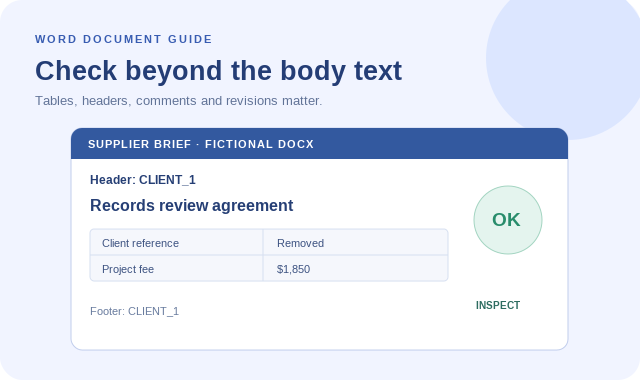
Header: CLIENT_1
Records review agreement
Scope
CLIENT_1 asks for a review of 18 records by 6 November. The recipient contact is removed.
Terms
| Item | Value |
|---|---|
| Client reference | Removed |
| Project fee | $1,850 |
The useful table and deadline remain. The header, body and footer use one token; the private reference and contact are gone. This visible mockup does not represent comments, changes or properties: inspect those in the actual saved DOCX.
Reopen and test the saved file
Search the exported DOCX for every removed value and likely variant. Read the first and last pages, tables, each section's headers and footers, and any text around a replacement. Run the relevant hidden-content inspection on the final copy. If a comment, revision or property still exposes a value, fix it, save a new copy and repeat the inspection. Confirm the filename and recipient before sending.
The planned app's DOCX scope concerns ordinary document content; generic Word inspection steps here are not a claim that the app automatically removes all comments, revisions, metadata or embedded content. For a saved PDF instead, use the PDF verification guide.
Conclusion: review the whole DOCX, not just its body
Make a separate copy, keep the fields needed for the task, inspect all visible regions and use Word's document inspection for hidden and collaborative content. Reopen the final file and correct anything that remains. If you are evaluating a local document workflow for later use, see the pre-release product and join the launch waitlist.